Free Clipping Tool No Watermark — Clean Browser Exports
Trim and crop 9:16 vertical shorts directly in your browser with zero watermarks, zero sign-up, and zero cloud uploads.
- Zero Watermark
- No Login Required
- 9:16 & 1:1 Crop
- Local Privacy
Drop a video file here to start free clipping
MP4, WebM, or MOV · Processed 100% locally in your browser · Zero watermark, zero upload
1. Trim Range
2. Aspect Ratio & Reframe
Audio is checked when the video loads.
Ready. Exports run locally inside your browser tab.
Privacy guarantee: FreeClipping runs locally in your browser using standard HTML5 Canvas and MediaRecorder APIs. Your video files never leave your computer or phone.
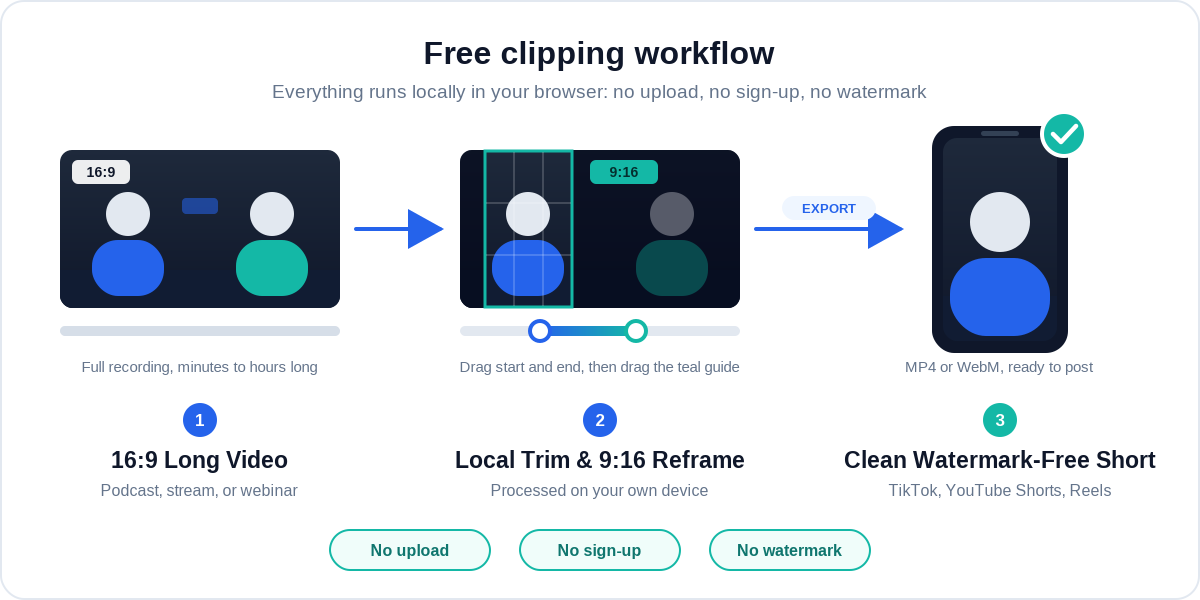
Export Watermark-Free Clips in 3 Steps
-
1
Select Your Video
Pick any local video file or click Load 6s Demo Clip to test watermark-free rendering right away.
-
2
Set Trim & Crop
Drag the Start and End handles on the timeline, then drag the teal 9:16 crop guide over the speaker.
-
3
Download Clean Clip
Render locally in your browser and download a clean clip ready for TikTok, Shorts, or Reels.
How the Watermark-Free Workflow Works
Your video is trimmed, reframed, and encoded on your own device, so there is no cloud render step that could stamp a logo on it.
Why Most "Free" Clipping Tools Add a Watermark
Searching for a free AI clipping tool with no watermark usually ends in frustration. Cloud video platforms pay for GPU servers to transcribe audio, detect faces, and render 1080p MP4s. To convert free users into paying subscribers, nearly every hosted SaaS clipper stamps a brand logo or end-card onto free-tier exports.
Because FreeClipping processes your clip directly on your own CPU and GPU inside your web browser, there are no cloud rendering bills to cover. That lets you trim and crop unlimited short-form clips with zero watermark, zero account walls, and zero monthly minute caps.
How to Get Clean, Watermark-Free Clips in 2026
Depending on how much automation you need, there are three genuinely watermark-free ways to clip long videos into TikToks, Reels, and YouTube Shorts:
- Instant browser clipping (FreeClipping above): Best when you already know which 15–60 second moment you want to cut and reframe to 9:16 vertical. Zero installation, zero upload wait, zero watermark.
- Free offline desktop software: Tools like LosslessCut, Shotcut, and DaVinci Resolve (Free edition) never watermark exports. They require a local download and install, making them ideal for multi-hour 4K podcasts or complex multi-track edits. See our free video clipping software comparison for exact trade-offs.
- Self-hosted open-source AI clipping: If you specifically want AI highlight detection and auto-captions without paying monthly fees or getting watermarked, open-source projects like OpenShorts run on your own machine via Docker. Read our OpenShorts self-hosted guide before installing.
Watermark Policies of Popular Free Clipping Tools
Before spending 20 minutes uploading a podcast to a new platform, check its free-tier watermark rule:
| Platform | Free Tier Watermark? | Resolution Cap on Free Plan | How to Avoid the Watermark |
|---|---|---|---|
| FreeClipping | No | Up to 1080 x 1920 vertical | Free by default in browser |
| LosslessCut / Shotcut | No | Original source resolution | Free desktop open-source apps |
| OpenShorts (Self-Hosted) | No | Original source resolution | Run locally with Docker + own API key |
| OpenShorts (Cloud) | Yes | Standard HD | Upgrade to paid cloud tier or self-host |
| OpusClip | Yes | 1080p (watermarked) | Paid plan required |
| Vizard | Yes | 720p (watermarked) | Paid plan required |
Best Practices Before Uploading to TikTok, Shorts, and Reels
- Export clean first, add native captions in-app: TikTok, Instagram Reels, and YouTube Shorts all include free built-in auto-caption tools. Exporting a clean 9:16 clip here and adding platform-native captions avoids third-party watermarks completely.
- Avoid cropping out watermarks from other apps: Zooming in on a watermarked export destroys video sharpness and often clips off speakers' faces. Starting with a clean source clip saves time and preserves quality.
Related Free Clipping Guides
Frequently Asked Questions
Does FreeClipping add a logo or outro to free exports?
No. FreeClipping never overlays a logo, text banner, or outro card on exported clips.
Is there a cloud AI clipping tool with no watermark for free?
Most hosted AI clippers add a watermark on free plans to cover cloud GPU rendering costs. To get AI highlights with no watermark for free, you generally need to self-host an open-source tool like OpenShorts or trim manually in a local browser/desktop clipper.
How can I add captions for free without a watermark?
Yes. Export your clean 9:16 vertical clip here with zero watermark, then use the free native auto-caption feature inside TikTok, Instagram Reels, or YouTube Shorts before publishing.
No comments yet. Tested the browser clipper? Share your workflow or ask a question above.