Free Clipping Tool — Trim & Crop 9:16 Videos Online With No Watermark
Free clipping for creators: cut long videos into clean 9:16 vertical shorts for TikTok, YouTube Shorts, and Reels right inside your browser. No sign-up, no uploads, and zero watermarks.
- 100% Free
- No Watermark
- No Sign-Up
- Runs Locally in Browser
Drop a video file here to start free clipping
MP4, WebM, or MOV · Processed 100% locally in your browser · Zero watermark, zero upload
1. Trim Range
2. Aspect Ratio & Reframe
Audio is checked when the video loads.
Ready. Exports run locally inside your browser tab.
Privacy guarantee: FreeClipping runs locally in your browser using standard HTML5 Canvas and MediaRecorder APIs. Your video files never leave your computer or phone.
How to Use This Free Clipping Tool in 3 Steps
-
1
Load Your Video Locally
Drop an MP4, WebM, or MOV file into the free clipping workspace, or click Load 6s Demo Clip. Nothing is uploaded.
-
2
Trim on the Timeline & Reframe
Drag the Start and End handles (or tap 15s, 30s, 60s, or Full), then drag the teal 9:16 guide over your speaker.
-
3
Preview & Export Clean
Use Preview Cut to check the span, then click Export Free Clip for a watermark-free MP4 or WebM.
How Free Clipping Works: From 16:9 Long Video to 9:16 Short
Free clipping here is a three-step loop that never leaves your device.
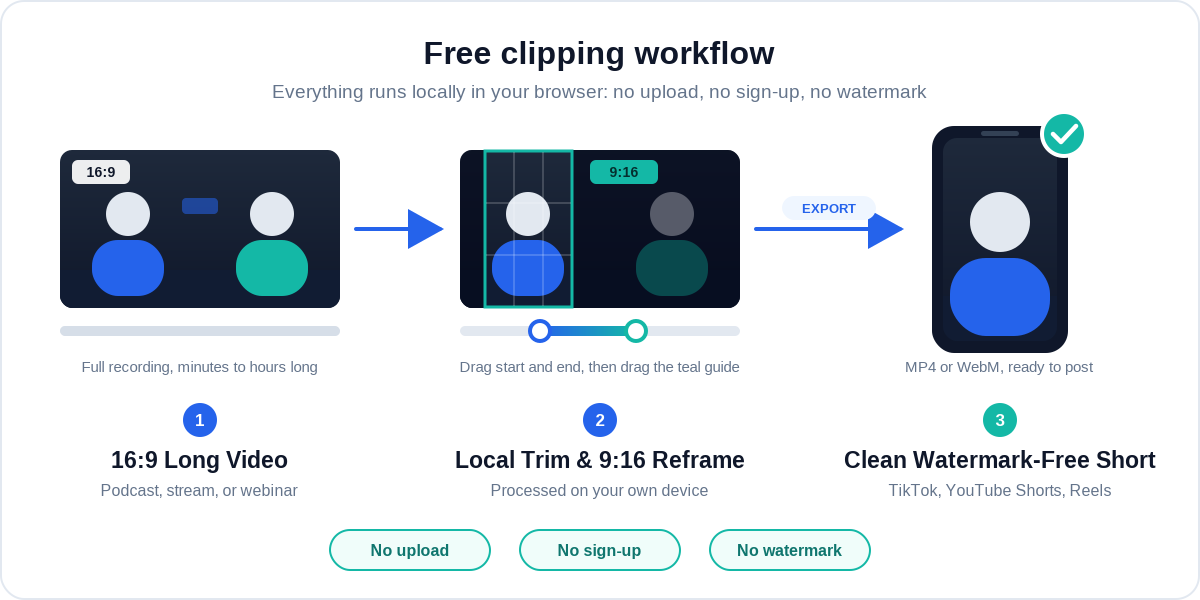
What Is Free Clipping and Who Is This Tool For?
Free clipping is the fastest way for YouTube, Twitch, podcast, and TikTok creators to cut a long recording into short vertical clips without a monthly subscription or a giant corner logo. Most hosted clippers advertise a free plan, then lock watermark removal or 9:16 exports behind a credit card wall.
FreeClipping takes a different approach. Instead of uploading gigabytes of footage to a remote queue, this free clipping tool runs directly inside your web browser. You load a local MP4, WebM, or MOV video, drag the start and end handles, frame the 9:16 crop around the speaker, and export a clean clip straight back to your device.
- No watermark on exports: Every clip exports clean, ready for TikTok, YouTube Shorts, and Instagram Reels.
- No account or credit card: Open the page and start free clipping immediately.
- Zero cloud uploads: Your raw footage never leaves your computer or phone, which matters for client work and unreleased podcasts.
- Built-in 9:16 and 1:1 reframe: Drag the teal guide to keep the subject in frame when converting 16:9 video into vertical shorts.
Inside the Free Clipping Studio: Every Control Explained
The editor above works like a compact studio monitor, so free clipping feels precise instead of like guesswork:
- Exact crop guide: The monitor matches your video's real aspect ratio, so the teal 9:16 or 1:1 box shows precisely what gets exported, with rule-of-thirds lines and an output-size badge.
- Custom transport bar: Play/Pause, a live playhead scrubber, and current time versus duration sit below the picture, never on top of it.
- Dual-handle timeline: Drag the Start and End handles, click the rail, type exact seconds, or tap 15s, 30s, 60s, or Full.
- Preview Cut: Plays only the selected span and stops at your end point.
- Smart audio handling: Silent recordings export as clean video-only files instead of carrying an empty audio stream.
- Export report: The result card lists measured duration, dimensions, format, and file size.
Browser Free Clipping vs. Free AI Clipping Tools (2026 Comparison)
If you already know which 30-second moment you want, a local browser clipper is faster and gives you unlimited clean exports. If you want an algorithm to scan a two-hour episode, score hooks, and burn in captions, a free AI clipping tool or open-source project may fit better. The table compares real free-tier limits and watermark policies across popular free clipping options:
| Tool | Type | Real Free Tier Limit | Watermark on Free Tier? | Sign-Up Required? | Best For |
|---|---|---|---|---|---|
| FreeClipping (This Page) | Browser local clipper | Unlimited local exports | No watermark | No | Fast manual trims and 9:16 vertical crops with full privacy |
| OpenShorts (Self-Hosted) | Open-source (Docker) | Unlimited (bring your own API key) | No watermark | No (local setup) | Technical creators who want free AI highlight detection and captions |
| OpenShorts (Cloud) | Hosted AI clipper | First video up to 60m, then 20 min/mo | Yes (cloud free plan) | Yes | Testing AI moment detection without installing Docker |
| OpusClip | Hosted AI clipper | ~60 free processing minutes/mo | Yes | Yes | Automated virality scoring and animated captions for podcasts |
| Vizard | Hosted AI clipper | Limited monthly export minutes (720p) | Yes | Yes | Multi-speaker podcast repurposing and auto-layout templates |
| LosslessCut | Free desktop software | Unlimited offline cuts | No watermark | No | Ultra-fast lossless trimming of huge 4K/multi-GB recordings |
When to Use Browser Free Clipping vs. an AI Clipping Tool
Choose FreeClipping when you want speed, privacy, and zero watermarks:
- You already spotted the highlight in a gameplay recording, webinar, or interview and need a clean 15s, 30s, or 60s vertical cut.
- You want to avoid upload bottlenecks on slow Wi-Fi or with large local files.
- You refuse to post watermarked clips, since third-party logos hurt viewer retention.
Choose a dedicated AI clipping tool (self-hosted OpenShorts, OpusClip, or Vizard) when you record long podcasts every week and need transcription, highlight scoring, and burned-in subtitles. Read our OpenShorts free self-hosted guide, or compare offline editors in our free video clipping software roundup. Many creators combine both: AI to shortlist moments, then free clipping in the browser to fine-tune cut points and framing.
A Free Clipping Checklist for Picking the Right Moment
- Does it make sense without context? Pick moments where the first sentence sets up the idea on its own.
- Is there a hook in the first two seconds? A bold claim, a question, or visible action. If not, move the Start handle.
- Does it end on a payoff? Stop right after the punchline; trailing "so yeah..." endings make clips feel long.
- Does it survive a 9:16 crop? With two people in a wide shot, pick whose reaction matters, or export 1:1.
- Will it read on mute? Plan to add the platform's native captions after export.
Short-Form Video Specs for Free Clipping (TikTok, Shorts, Reels)
| Platform | Recommended Aspect Ratio | Target Resolution | Sweet-Spot Clip Length | Max Short Length |
|---|---|---|---|---|
| TikTok | 9:16 Vertical | 1080 x 1920 | 15 – 45 seconds | Up to 10 minutes |
| YouTube Shorts | 9:16 Vertical | 1080 x 1920 | 20 – 55 seconds | Up to 3 minutes |
| Instagram Reels | 9:16 Vertical | 1080 x 1920 | 15 – 35 seconds | Up to 90 seconds (feed reels) |
| LinkedIn / X Feed | 1:1 Square or 16:9 | 1080 x 1080 / 1920 x 1080 | 30 – 60 seconds | Varies by account |
Free Clipping Export Formats and Quality
Exports use the browser's built-in MediaRecorder: MP4 (H.264) where supported, otherwise WebM (VP9 or VP8). Both upload cleanly to TikTok, YouTube Shorts, and Instagram. Vertical clips render at 540×960, 720×1280, or 1080×1920 based on your source height, and export runs in real time, so a 30-second clip takes about 30 seconds.
Practical Free Clipping Tips for Better Vertical Clips
- Cut the dead air: Start your trim as the first strong sentence or action begins.
- Frame with the teal guide: Drag it so the speaker's eyes sit near the upper third line.
- Keep the tab in front during export: Background tabs are throttled and can stutter.
- Trim giant files first: Rough-cut multi-hour 4K recordings in LosslessCut, then use free clipping here for the final 9:16 reframe.
Free Clipping Alternatives: 4 Honest Picks for 2026
When manual free clipping is not enough, these are the tools we would point a creator to, with free-tier limits stated plainly.
OpenShorts
Open-source AI clipperFinds highlight moments, reframes them to 9:16, and adds captions. Self-host with Docker or use the hosted cloud.
Pros
- Self-hosted setup has no watermark and no minute cap
- AI moment detection and auto-captions
- MIT license, so you control the whole pipeline
Cons
- Needs Docker plus your own AI API key (usage costs apply)
- Hosted cloud free plan is limited and watermarked
Best for: Technical creators who want AI free clipping without a subscription.
Visit Official SiteOpusClip
Cloud AI highlights & captionsHosted AI clipper that scores likely viral moments and adds animated captions.
Pros
- AI picks and ranks highlight moments for you
- Animated caption styles built in
- No install; works in any browser
Cons
- Free plan has monthly processing limits and a watermark
- Footage must be uploaded to the cloud
Best for: Weekly podcasters who want automated scoring and captions.
Visit Official SiteVizard
Multi-speaker podcast repurposingCloud editor that turns interviews and podcasts into clips with speaker-aware layouts.
Pros
- Layouts designed for two or more speakers
- Reusable caption and brand templates
- Team-friendly cloud workspace
Cons
- Free exports are watermarked and capped at 720p
- Monthly minute limits on the free plan
Best for: Interview and podcast teams with several people on camera.
Visit Official SiteLosslessCut
Free offline desktop cutterOpen-source desktop app for Windows, macOS, and Linux that cuts huge files without re-encoding.
Pros
- Near-instant cuts with no quality loss
- Handles multi-GB and 4K files offline
- Open source, never adds a watermark
Cons
- No 9:16 crop or reframe (lossless means no re-encode)
- Cuts snap to keyframes, so edges can shift slightly
Best for: Rough-cutting long recordings before free clipping a 9:16 short here.
Visit Official SiteLinks to commercial tools may become partner links. That never changes how we describe their free plans, limits, or watermark rules.
Explore More Free Clipping Guides
Frequently Asked Questions
Is this free clipping tool really free with no watermark?
Yes. It runs in your browser with no watermark, paywall, or account. Trim and crop as many local clips as you need.
Are my videos uploaded to a server?
No. Your file stays on your device. Processing uses built-in browser Canvas and MediaRecorder APIs, so nothing is uploaded.
Does this free clipping tool use AI to auto-detect highlights?
No. It handles fast manual trimming and 9:16 cropping on your device. For automated moment scoring and captions, see the tool picks above or our OpenShorts guide.
Which video formats are supported for input and export?
Any MP4, WebM, or MOV file your browser can play. Exports save as MP4 (H.264) or WebM (VP9/VP8) depending on browser support; both upload cleanly to Shorts, TikTok, and Reels.
Why is my exported clip silent?
If the source has no audio track (the 6s demo is silent on purpose), you get a clean video-only file. If it has sound, keep "Include original audio track" checked.
How do I keep an off-center speaker in a 9:16 frame?
Drag the teal crop guide over the monitor, or use the Focus slider. The guide shows exactly what will be exported.
Is there a file size or duration limit?
No hard limit, but export runs in real time, so clips under 60 seconds finish fastest. For multi-hour 4K files, rough-cut in LosslessCut first, then reframe here.
Can I use free clipping on my phone?
Yes. Recent mobile browsers can trim and export locally. Keep the screen on and the tab open during export.
No comments yet. Tested the browser clipper? Share your workflow or ask a question above.